Text to video
A product in golden light
A slow camera move reveals reflections in glass and warm light across stone.
Seedance 2 Mini16:9720p5sSilent
Start with a prompt, photos, or reference media. Shape the motion and keep every version in your works.
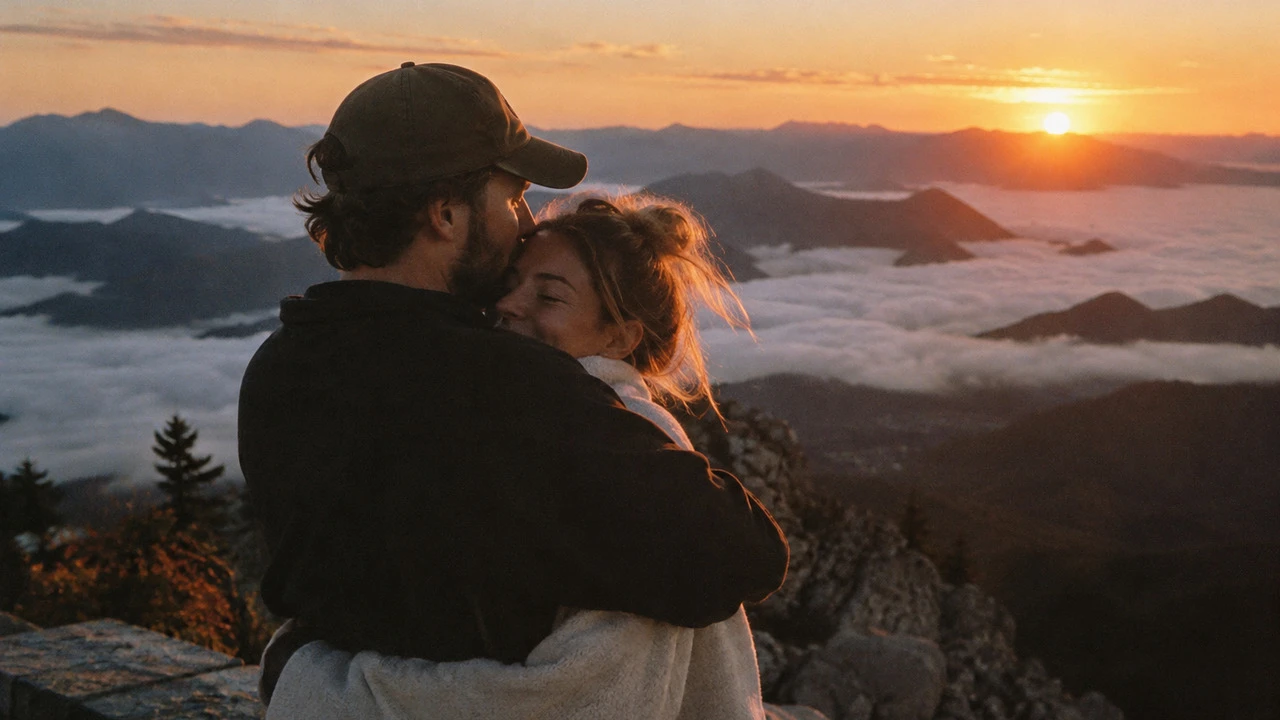
Bring a travel photo to life
Seedance 2 Mini · 16:9 · 720p · 5s
Four short films show text-to-video and image-to-video workflows with Seedance 2 Mini and MiniMax H3. Videos load when you choose to play them; use the player controls to enable available audio.
Text to video
A slow camera move reveals reflections in glass and warm light across stone.
Seedance 2 Mini16:9720p5sSilent
Image to video
A gentle push-in, subtle hair movement and drifting clouds animate the original embrace.
Seedance 2 Mini16:9720p5sSilent
Text to video
An illustrated character walks through a sunlit forest with softly glowing spirits.
MiniMax H316:9768P5sAudio included
Text to video
A stylized perfume film explores a different visual direction from the same product category.
MiniMax H316:9768P5sAudio included
Each example includes the prompt and settings used to create it. Use a prompt as a starting point; results vary. Reference-based examples need an uploaded image. Review the currently available model, settings and credits before generating.
Text to video starts with your description of a subject, action and camera movement. It is useful for a new product scene, an imagined environment or a short animation. Keep the scene focused enough for the selected duration.
Image to video starts from an uploaded image. Describe how the scene should move: a slight breeze, slow cloud movement or a restrained camera push-in. Say which parts should remain stable, especially faces, product shapes and the original composition.
Select Text to Video or Image to Video. For a photo animation, upload the first frame.
Write the subject’s action and the camera movement. You can start with one of the example prompts.
Choose a model, then open the settings panel for duration, ratio, resolution and any supported audio controls. Review CR.
Sign in to start the task. Follow its status in your workspace, then play and download the finished video.
Seedance 2 Mini is the default starting point. The model picker shows the current catalog, and each model determines which modes, inputs and settings are available.
Explore video settingsA useful video prompt describes the subject, its action, the camera and what changes over time. The examples above include their full prompts so you can inspect the choices behind each clip.
For a short clip, choose one action that can read clearly. A slow turn, a light breeze or a gentle forward camera move is easier to follow than several scene changes.
State whether the subject stays still while the camera moves, or whether the camera is fixed while the subject moves. Avoid contradictory instructions.
When animating an image, name the details that should stay stable. Use restrained motion for portraits and product shapes, then check the result before using it.
Video CR can change with the model, resolution, duration, generation mode and required source media. The server calculates the quote for your current configuration; changing a parameter updates the amount.
Usage-based tasks reserve the maximum shown in the quote, then return unused credits after final billing. Some modes need the source media before a quote can be calculated. Review the quote before generating and the billing status once the result is ready.
View credit plansIt creates a video from a text description or supplied media. This page supports text-to-video and image-to-video, with additional modes available according to the selected model.
Yes. Select a model with Image to Video, upload a first-frame image and describe the motion you want. The sunset example shows a photo animated with a gentle camera move and small environmental changes.
Seedance 2 Mini is the default. This page also includes MiniMax H3 examples so you can compare different visual results. Available modes and settings are shown in the generator for each model.
Yes, when five seconds is supported by the chosen model and mode. The examples here were requested at five seconds. Encoded files can include a small additional fraction of a second.
Choose an available aspect ratio in the workbench. Supported ratios vary by model and mode; some workflows use the source media’s dimensions instead of a separate ratio setting.
That depends on the model. The example labels show whether each clip contains audio. Examples start muted; use the player controls to listen. The generation settings show any available audio switch.
No. It fills the prompt and applies settings supported by the current catalog. For image-to-video you still need to upload a reference image. Review the settings and credits, then press Generate to submit.
After submission, the task continues in the background. Return to My Works to check progress and open the result. If billing is still pending, the work’s status explains the current reservation or final charge.